
A quick answer
An AI thumbnail generator turns your brief into a subject with text. The Studio lets you reuse people and styles, develop matching title ideas and revise drafts through chat. Check the face, lettering and message before exporting.
Your source material
Use your video file or a written brief with images.
A recognisable series
Saved people and styles provide a shared starting point.
Revisions in one project
Edit through chat and compare earlier versions.
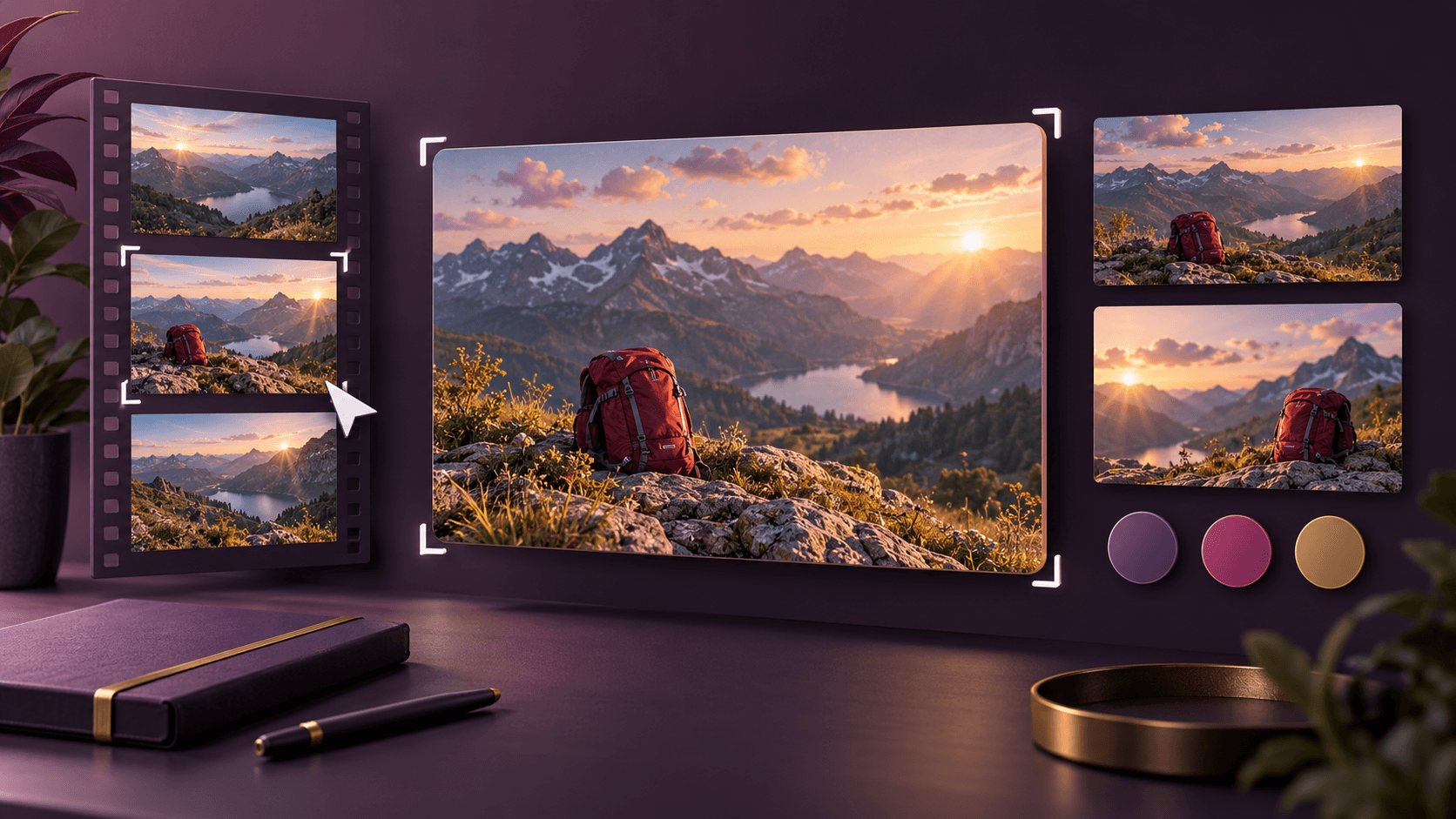
A style example from the studio
Use your brief to define the subject and the message your text should add. This preview shows one way to arrange them. Then check your own draft at a small viewing size.
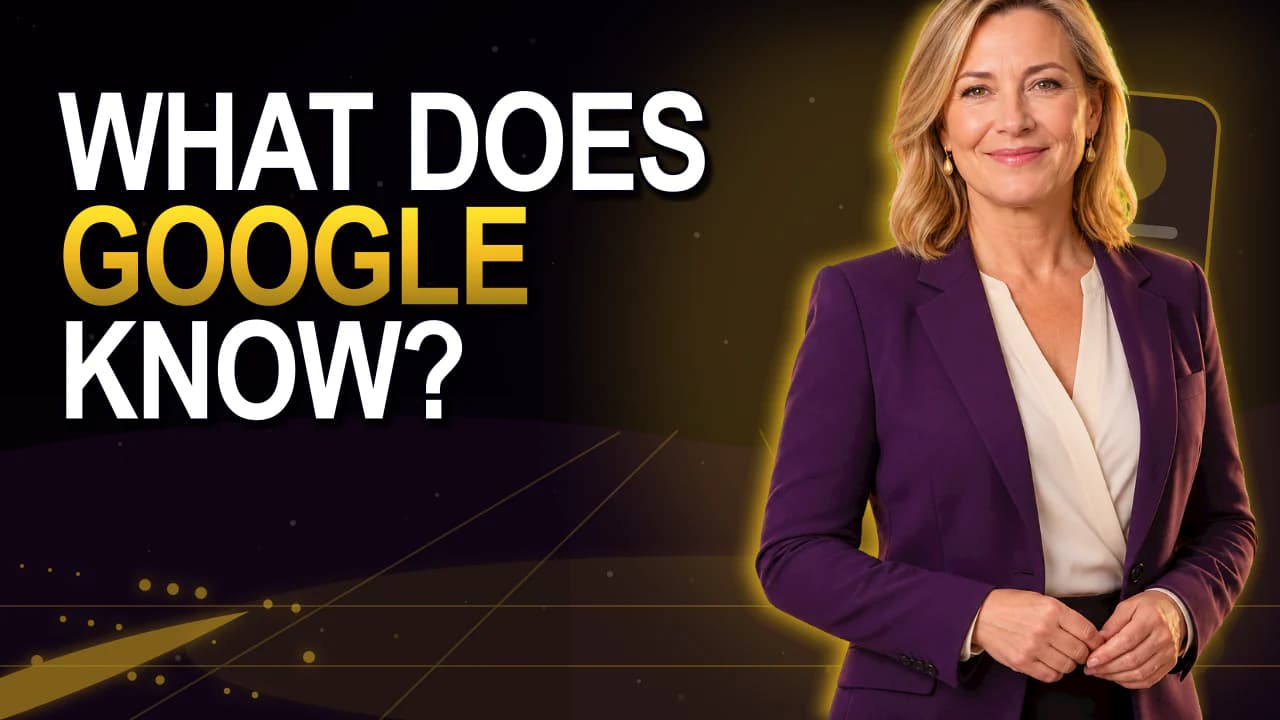
Existing style previews for reference. They demonstrate neither a measured click-through rate nor an unchanged person after AI regeneration.
How to approach it
Choose the message
Write the specific benefit your video explains.
Add your material
Use text, images or your video file.
Revise the draft
Select a style and describe changes in chat.
Review the result
Check faces, wording and small previews before downloading.
Give the design a clear brief
Describe the audience, message and subject. A concrete example is easier to work with than conflicting style instructions.
Choose from 19 styles and optionally use a saved person. Generative modes can change facial details, so review each finished image.
Original frame or generated scene?
Original-image mode keeps a selected video frame and adds text. AI modes create a new scene.
The video workflow starts with your file. A YouTube URL does not replace the upload.
Good to know
Is AI creation free?
No. It requires a paid plan. Preview and size checker are free tools without AI.
Can AI change my face?
Yes. Review generated images or use an original frame with text.